Movies have shown us that leaving a family member behind is an effective deterrent against burglars, but doing so is often considered irresponsible. A more practical solution lies in utilizing the Presence Simulation feature within Home Assistant, allowing homeowners to create a convincing illusion of occupancy when they're abroad. This can be achieved through various automated routines and settings.
01Simulates Occupant Activity in Absence Situations.
›Maintain a lived-in look.
A clever Home Assistant user has developed Presence Simulation, a bespoke component that mimics real-life occupancy patterns. By replicating daily routines and habits, this innovative feature helps create an authentic, lived-in atmosphere in your home, making it appear occupied even when you're not there.
Related ↗Ditching Windows? Replace top picks with these five Linux counterparts.The Recorder is a fundamental component within Home Assistant that saves every piece of information produced by connected smart home gadgets. This core feature retains the past ten days' worth of data, accessible via the Home Assistant History section.
Historical data can be leveraged by Presence Simulation to replicate the exact states of devices in your smart home from a specified past period. This means if your living room lights followed a particular schedule last Wednesday - turning on at 6:58 PM, then off at 7:29 PM, back on at 7:59 PM, and finally off again at 10:27 PM - they will repeat the same sequence this Wednesday while Presence Simulation is active.
Read next ↗Windows struggles with legacy system integration.Presence Simulation enables seamless control over various devices, encompassing lighting systems, automated window treatments like smart blinds, and multimedia equipment, all of which can be managed via specific Home Assistant commands.
08Installing Presence Simulation
›Smart Home Automation via HACS.
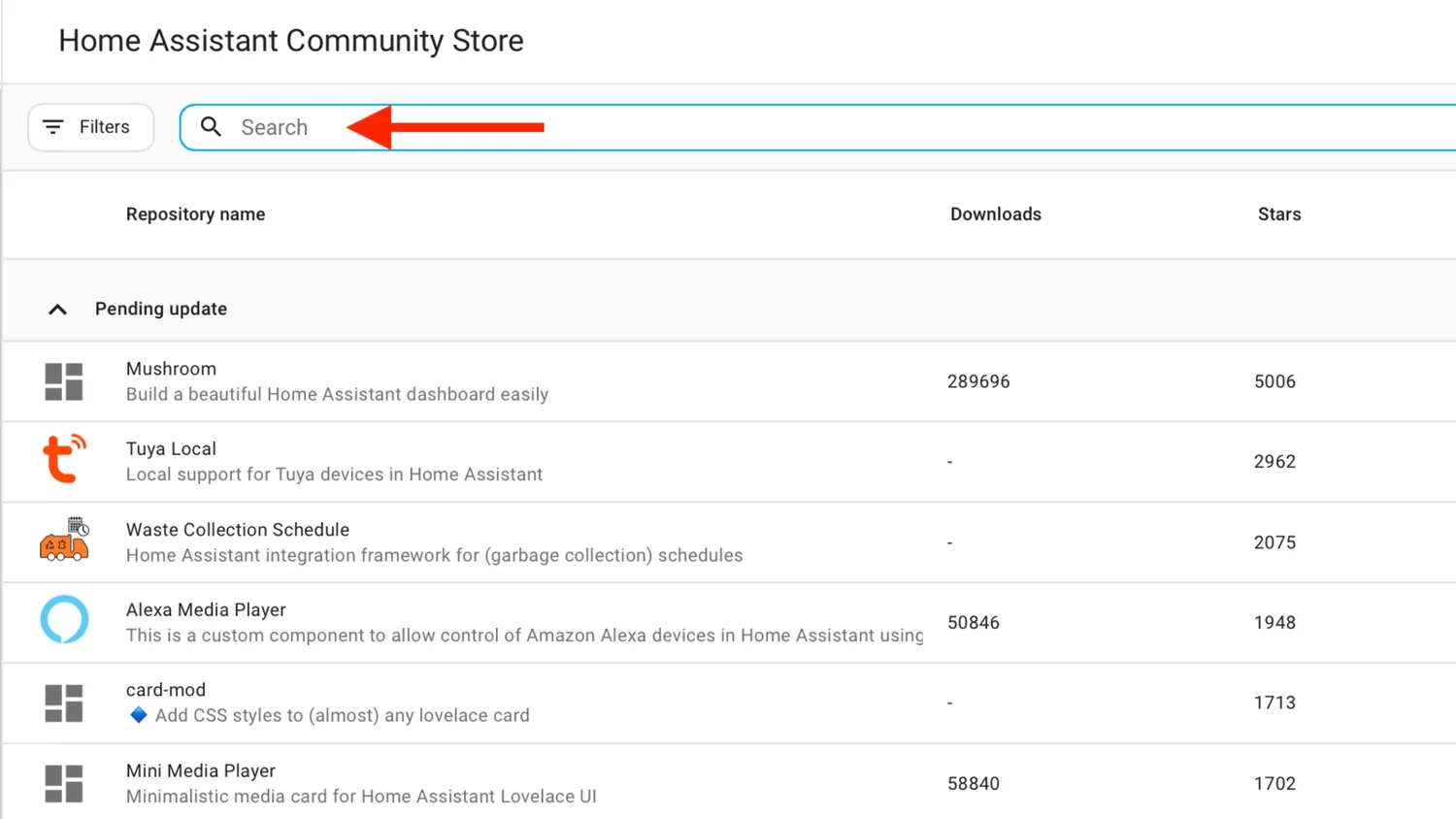
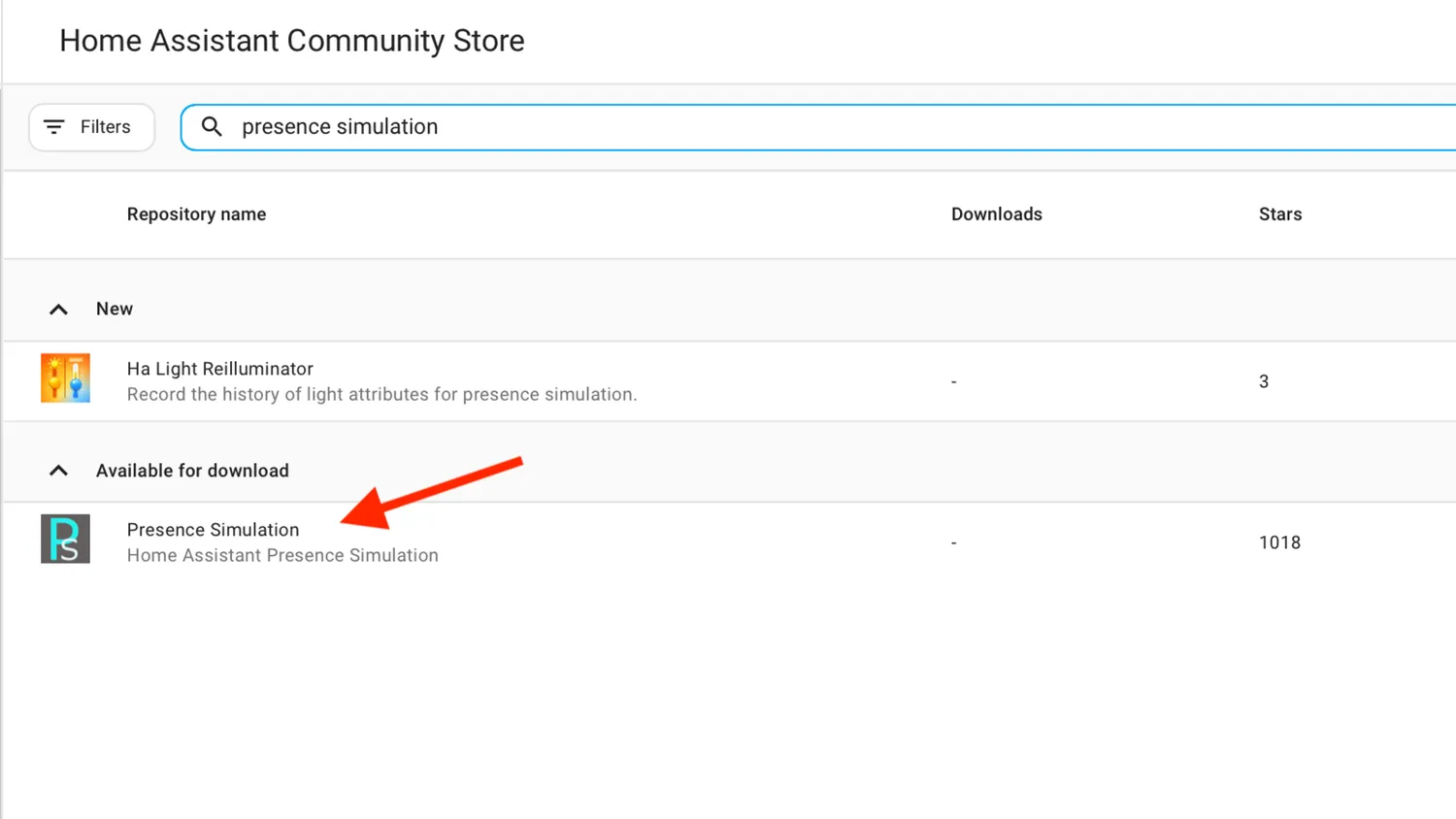
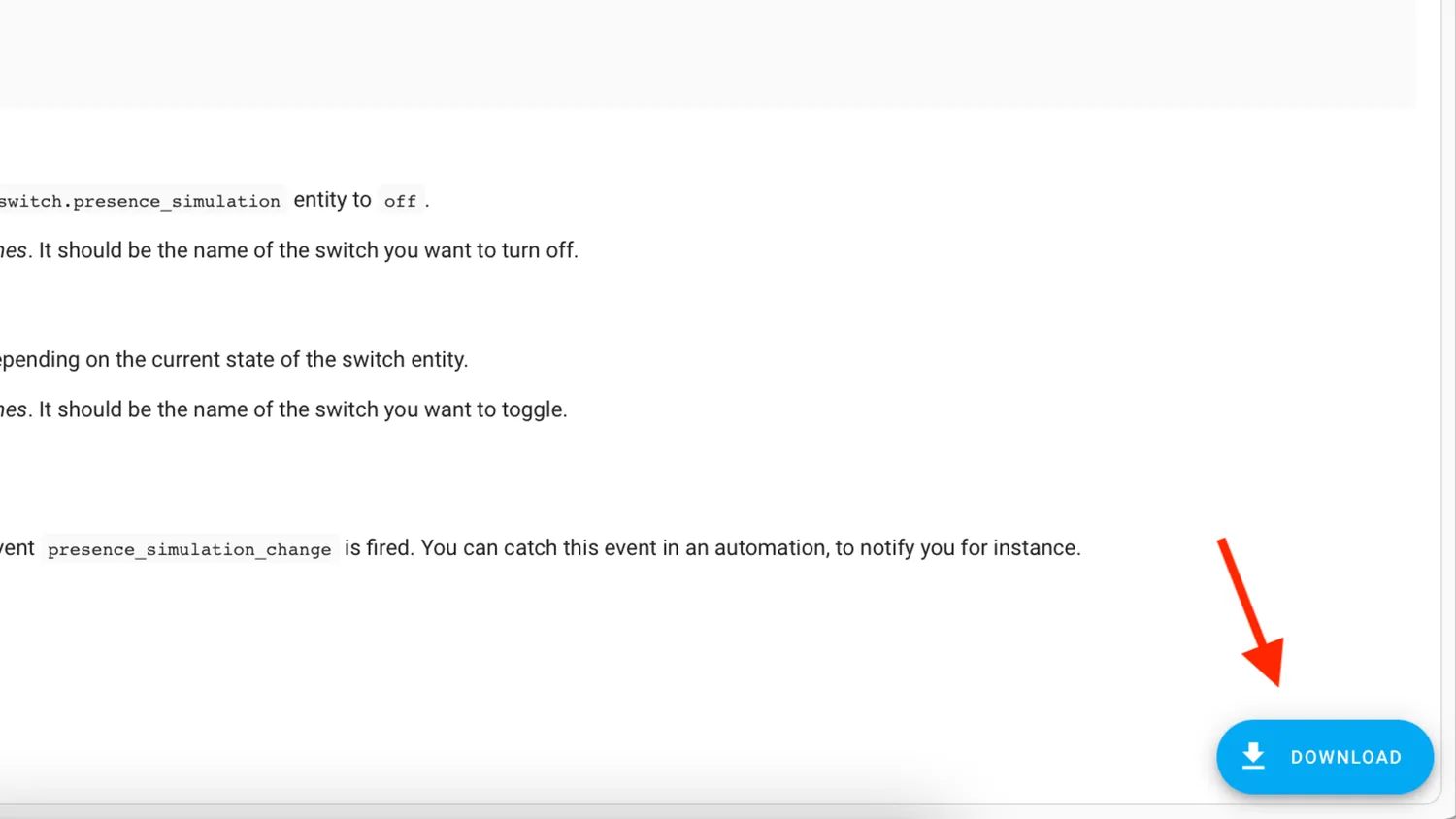
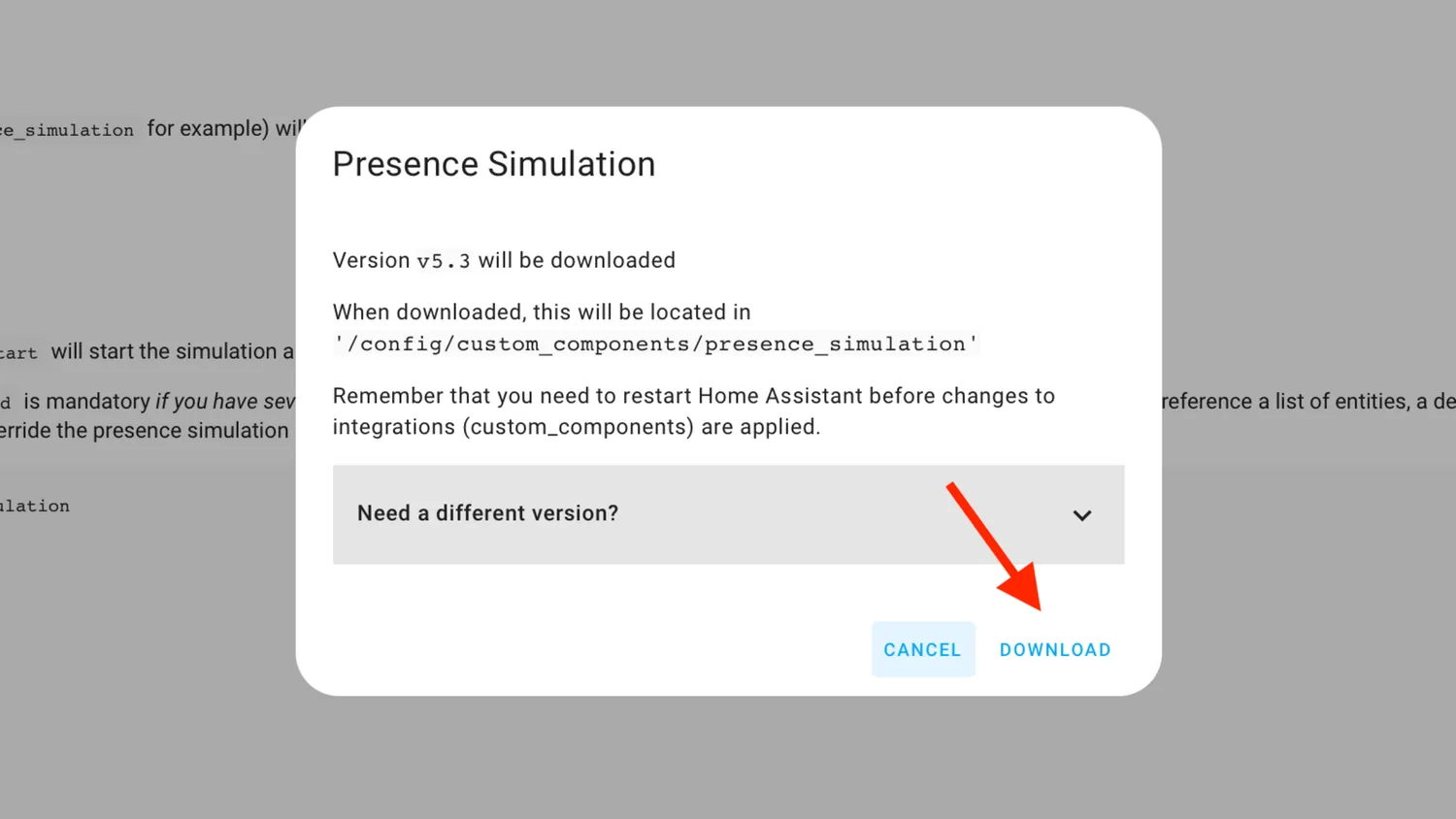
To enable Presence Simulation, navigate to HACS and conduct a search for the feature. From the search results, identify and select Presence Simulation. Next, locate the download option at the page's lower edge and initiate the download process. After completion, perform a system reboot on Home Assistant.
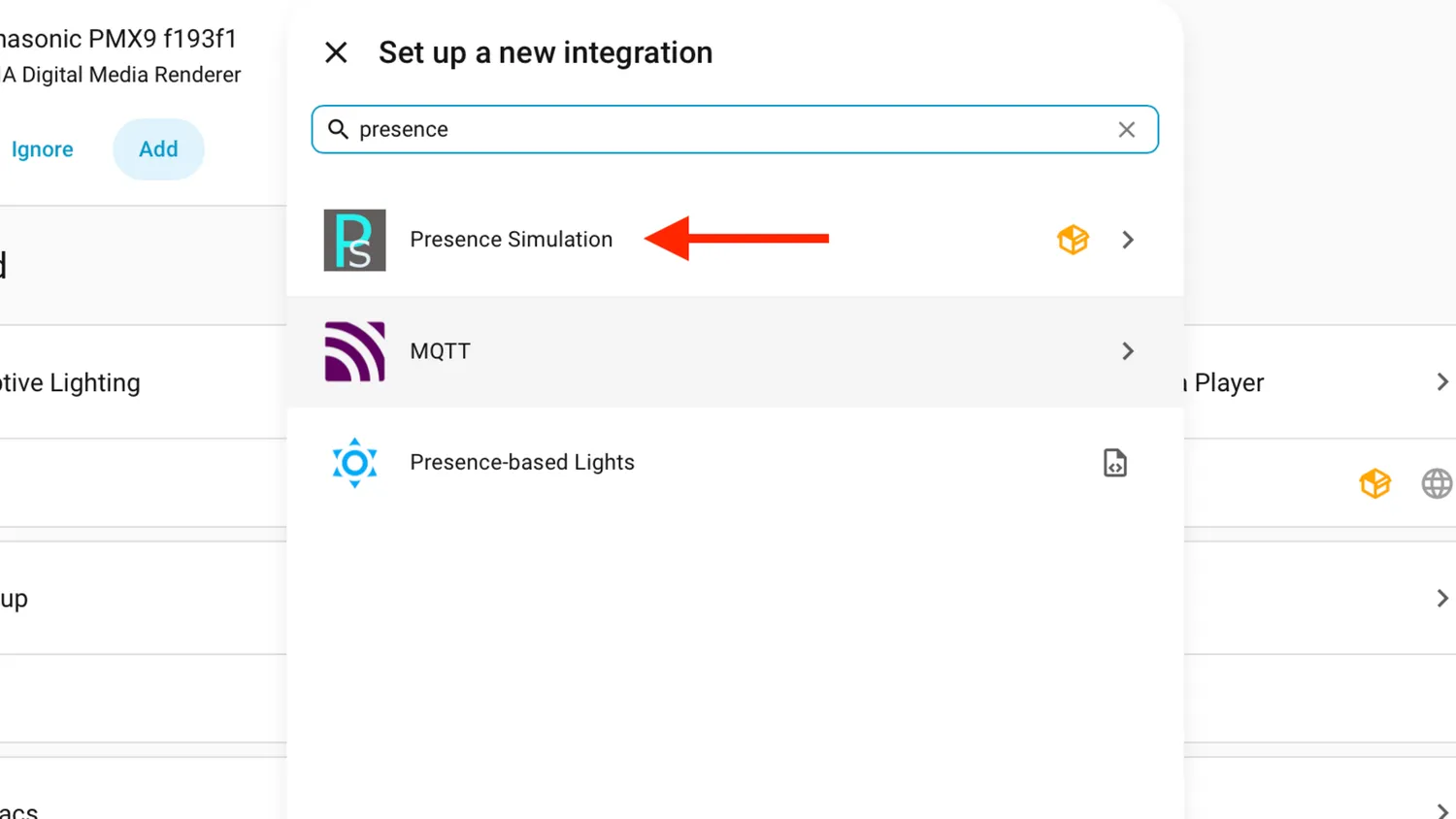
After restarting Home Assistant, navigate to Settings, then click on Devices & services. Within this menu, access the Integrations section by selecting it from the available options. From here, you can initiate the process of adding a new integration.
17Deciding which aspects to replicate remotely.
›Choosing the correct devices
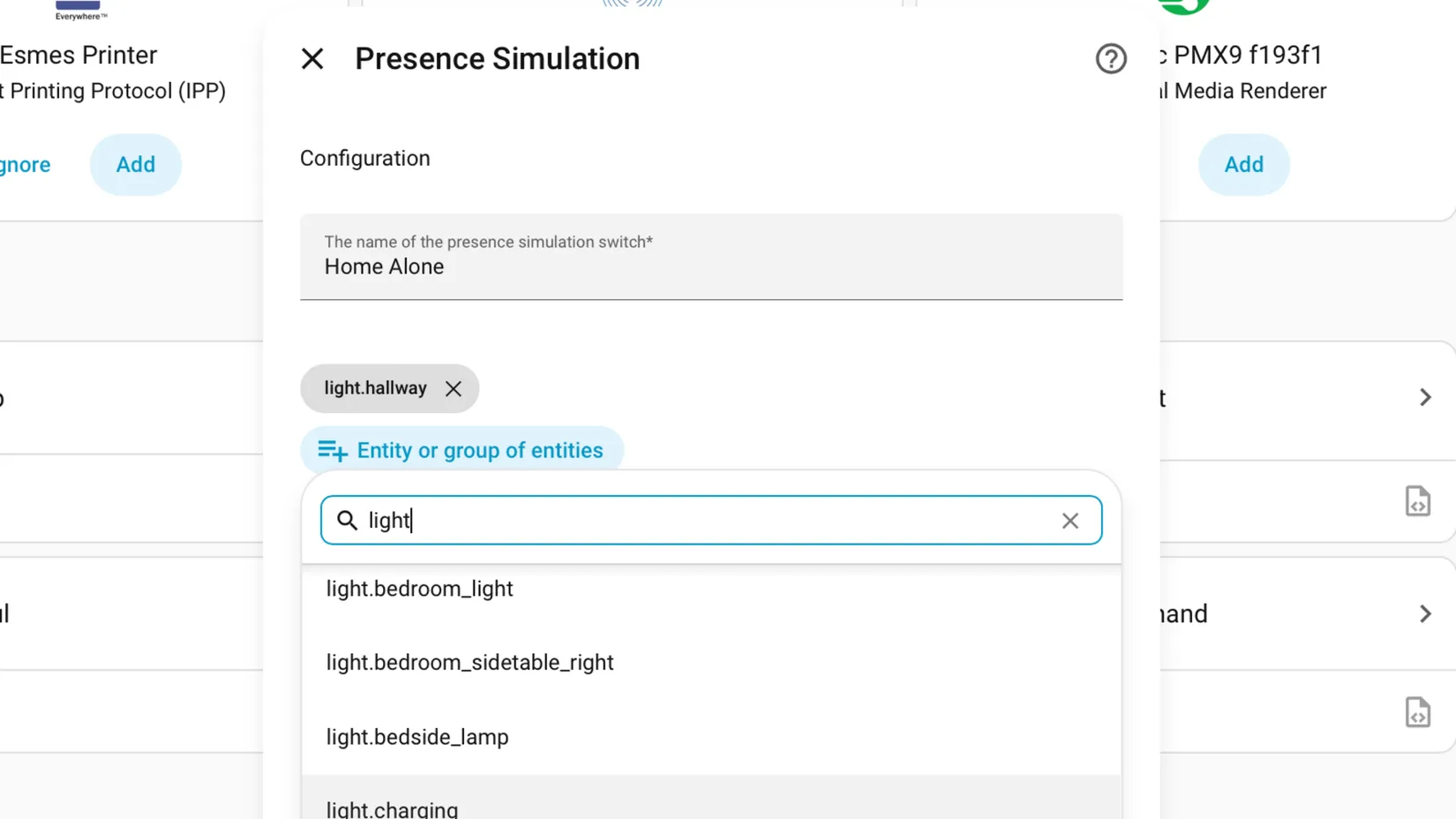
To initiate setup, start by naming your presence simulation. Next, select the entities you wish to incorporate into your system. Two methods are available for adding entities: individual selection or grouping via the Home Assistant Helper UI. When using groups, each entity within the group will still operate independently based on its own historical data.
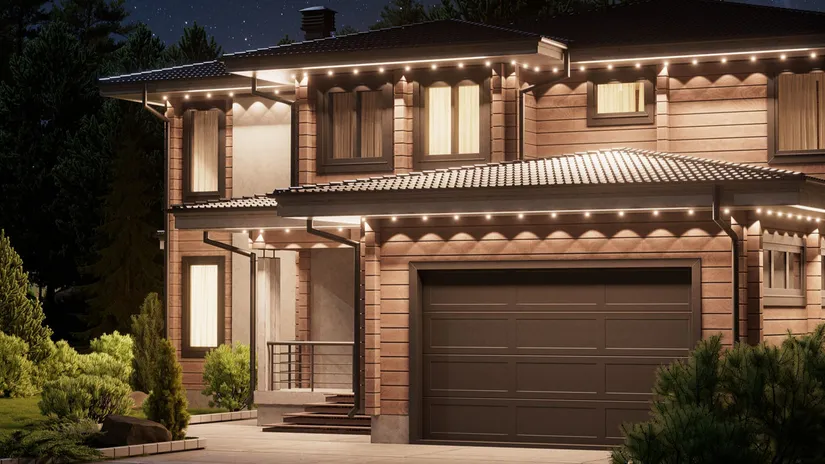
When setting up a presence simulation, one crucial consideration is selecting which devices will contribute to its authenticity. External lighting fixtures, like those in the living room, kitchen, and bedrooms, are essential for creating an impression from outside your home. However interior lights such as hallway illumination can be omitted without compromising the overall effect.
When integrating smart home features, don't overlook automated window treatments - they can make a significant impact on your home's ambiance. The subtle movement of opening and closing blinds or curtains adds a touch of occupancy to an otherwise empty space.
Creating a convincing smart home presence goes beyond visual appeal. It's also about creating an immersive audio experience. Adding devices like smart speakers or TVs can simulate the sounds of human activity, making your absence less noticeable to potential intruders.
When integrating smart home features, don't overlookautomated window treatments- they can make a significant impact on your home's ambiance. The subtle movement of opening and closing blinds or curtains adds a touch of occupancy to an otherwise empty space.
25Defining Simulation Behavior Settings
›Configuring essential features
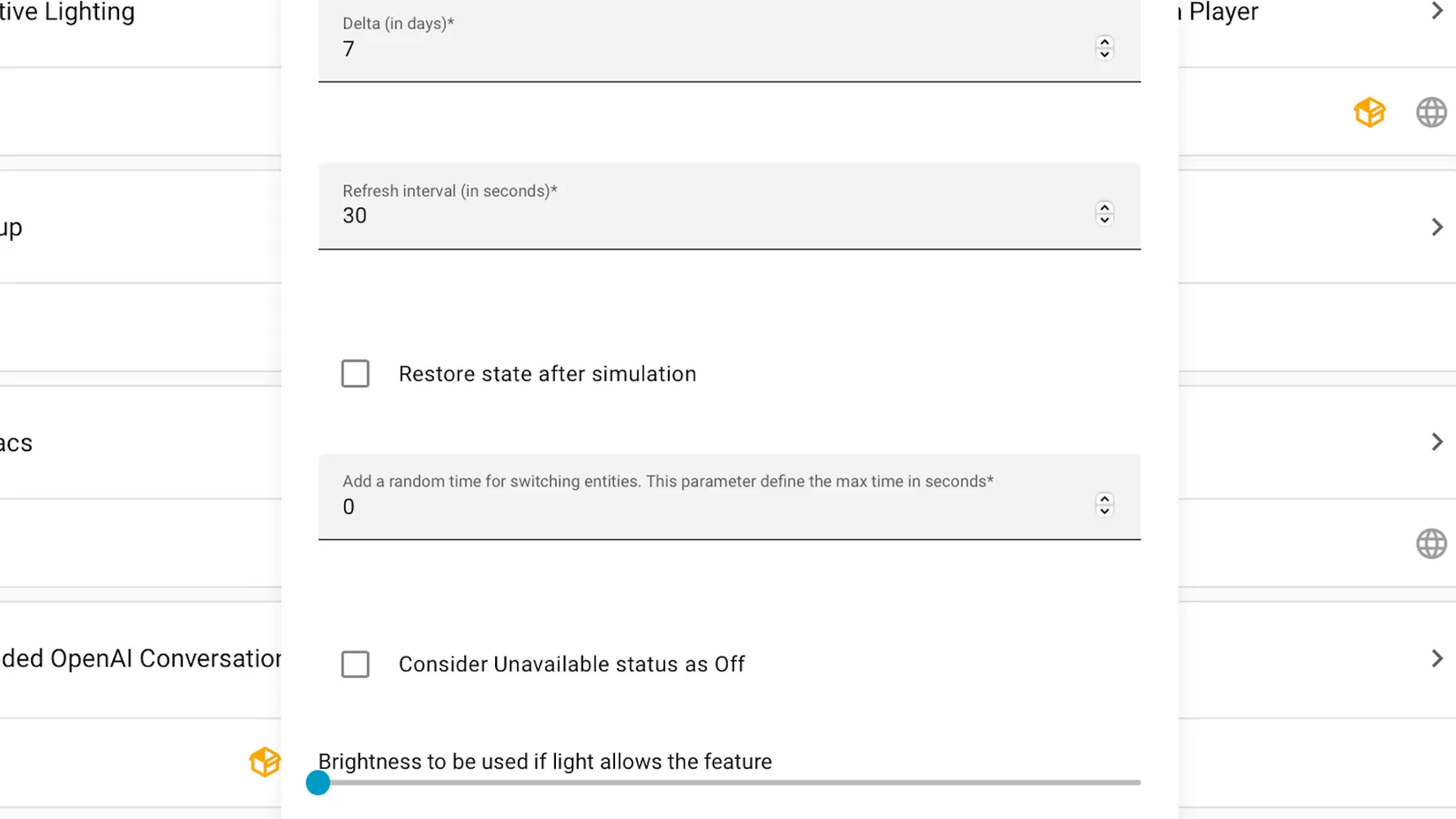
After configuring your entities, there are several additional settings to fine-tune. The Delta value is one such setting, dictating how many days prior Presence Simulation should retrieve entity history from. With a default of 7 days, your entities will replicate their behavior exactly as it was a week ago. I opt for this setting because it allows my smart home to exhibit distinct differences between weekdays and weekends, thereby enhancing the simulation's realism.
Adjusting the refresh interval's duration may necessitate increased computational resources, prompting me to retain the standard configuration. The restoration of simulation state reverts all entities to their pre-simulation conditions, a feature I utilize within my own system settings.
To introduce unpredictability, you can specify a time offset for entity state changes. This involves adding or subtracting a random number of seconds from the scheduled change time, with a maximum deviation determined by your input in this field. Meanwhile, another setting enables you to define a default lighting level that will be applied uniformly across all lights during the simulation process.
›Maintain a home's occupied illusion remotely.
To maintain your home's occupied illusion from a distance, simply initiate the Presence Simulation once it's been properly configured. Activate it at will by toggling the presence_simulation switch or schedule an automated startup for when you're away.
Using a calendar's schedule can initiate the simulation, or it can be triggered when occupants are away for an extended period of more than a certain number of hours. The goal is to create a believable illusion that someone lives there, making it unnecessary for your son to resort to elaborate security measures. This setup should convincingly mimic normal household activity.
Using a calendar's schedule can initiate thesimulation, or itcan be triggered when occupants areaway for an extended period of morethan a certain number of hours. The goal is to create a believable illusion that someone lives there, making it unnecessary for your son to resort to elaborate security measures. This setup should convincingly mimic normal household activity.